

 ChatGPT
 Perplexity
 Grok
Grok
 Google AI
A contact form gives visitors an easy way to reach your website. They can ask questions or send enquiries directly. This saves them from having to search for your email address. It also creates a clear communication path for your visitors.
Creating forms with code can be challenging for beginners. You may need knowledge of HTML, CSS, and development. Even small errors can affect how your form works. This makes coding unnecessary for simple contact forms.
A no-code form builder offers a simpler approach. You can create fields using visual controls instead. You can also change settings without touching code. This guide explains how to build and publish your form.
Why Add a Contact Form to WordPress?
A contact form makes it easier for website visitors to communicate. They can submit enquiries directly from your website. This removes extra steps from the contact process. It also gives visitors a clear way to request help.
Forms can collect useful information at the same time. You can ask for names, email addresses, messages, or phone numbers. You can also include fields for specific services. This helps you understand each enquiry before responding.
A form can also keep submissions organised. Many tools send entries directly to your inbox. Some also store submissions inside your WordPress dashboard. This makes reviewing and managing enquiries easier.
What You Need to Create a Contact Form
You only need a few things to get started. First, you need an active WordPress website. You also need administrator access for managing your form tool.
Next, choose a reliable WordPress form builder. Look for simple controls and useful features. Templates can speed up setup considerably. Notifications, spam protection, and embedding options can also prove useful.
Finally, decide what information you want to collect. Choose an email address for receiving new submissions. These small preparations can make the creation process much easier. For example, LeadX Forms offers a simple no-code approach to building and customising forms without technical knowledge.
A WordPress Website
You need an active WordPress website before creating your form. Administrator access lets you manage plugins and form tools. Keep your WordPress installation updated to reduce compatibility issues. You should also check that your website works correctly before starting the setup.
A Reliable WordPress Form Builder
Choose a builder with simple visual controls. A drag-and-drop form builder can make creation easier for beginners. Look for templates, custom fields, notifications, spam protection, and embedding features. Focus on tools that match your actual requirements.
Basic Information About Your Form
Decide what your form should accomplish before building it. A basic enquiry form may need only contact details and a message. A service form may require additional information. Knowing the purpose helps you avoid unnecessary fields.
An Email Address
Choose an active email address for receiving submissions. Check this inbox regularly for new enquiries. A professional address can also create a better impression. Test your notification settings before publishing the form.
How to Create a Contact Form in WordPress Without Code
Creating a contact form does not require complicated development work. Most builders use a simple visual interface. You can select fields, change settings, and arrange the layout. The exact options may vary between different tools.
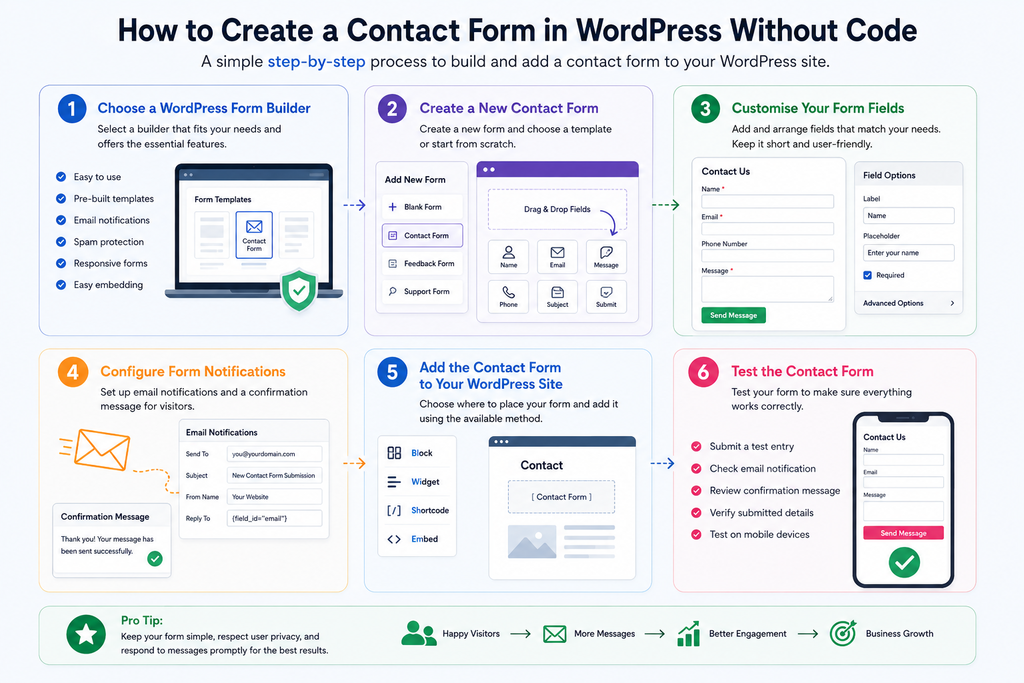
The process usually follows five main stages. You choose a builder and create your form first. Then, you customise fields and configure notifications. Finally, you add the form to your website and test it.
Choose a WordPress Form Builder
Start by choosing a WordPress form builder that suits your website. Look for an interface that feels simple to navigate. Templates can save time during setup. Also check for notifications, spam protection, responsive forms, and easy embedding before choosing your tool.
Create a New Contact Form
Open your chosen builder through the WordPress dashboard. Select the option to create a new form. You may find templates for different purposes. Choose a contact template if suitable, or start with a blank form. Then add the fields visitors need.
Customise Your Form Fields
Customise each field according to your form’s purpose. A basic form usually needs name, email, and message fields. You can add a phone number or service field when needed. Keep the form short and arrange fields in a logical sequence.
Configure Form Notifications
Open the notification settings inside your form builder. Enter the email address that should receive submissions. Create a clear subject line for incoming messages. You should also configure the confirmation message. This reassures visitors after they submit their information.
Add the Contact Form to Your WordPress Site
Choose where visitors should find your form. A dedicated Contact page often works well. Your builder may provide a block, widget, shortcode, or embed option. Add the form using the available method. Preview the page before publishing it.
Test the Contact Form
Always test your form before publishing it. Submit an entry using realistic information. Check that the notification reaches the correct inbox. Review the confirmation message and submitted details. Also test the form on mobile devices before launch.
Best Practices for a WordPress Contact Form
Keep your form short and focused. Ask only for information that serves a clear purpose. Visitors should understand every field without extra explanation.
Use simple labels and clear instructions. Mark required fields where necessary. Make sure buttons and fields remain easy to use on mobile devices. A responsive layout creates a smoother experience across different screens.
Spam protection can also reduce unwanted submissions. Choose protection that does not frustrate genuine visitors. After submission, show a clear confirmation message. Tell visitors that you received their enquiry successfully. For more guidance, learn How Many Fields Should Your Lead Form Have? to avoid creating unnecessary friction for visitors.
Common Mistakes to Avoid
Avoiding simple form mistakes can improve completion rates. The following issues can create confusion or prevent successful submissions.
- Adding too many fields: Ask only for information you genuinely need.
- Using unclear labels: Give every field a simple, descriptive label.
- Forgetting notifications: Make sure submissions reach the correct inbox.
- Skipping testing: Submit test entries before publishing the form.
- Ignoring mobile users: Check the form across different screen sizes.
- Using confusing instructions: Keep guidance short and straightforward.
Conclusion
Creating a WordPress contact form does not require coding skills. A no-code form builder can simplify the entire process. Choose useful fields that match your visitors’ needs. Configure notifications so you receive every new enquiry. Then, add the form to your chosen website page.
Before publishing, test every part of the form carefully. Check the fields, notifications, confirmation message, and mobile display. A simple and well-tested form can improve communication with visitors. It can also make your website easier to use.
Frequently Asked Questions
Yes, you can create a contact form without writing code. A no-code form builder provides visual controls for creating forms. You can add fields, customise settings, and configure notifications through its interface. This removes the need for HTML or CSS knowledge.
The easiest option depends on your website and requirements. Look for clear controls and simple navigation. Templates and drag-and-drop features can speed up the process. Also consider notifications, spam protection, integrations, and embedding options.
First, create your form with a suitable form builder. Then open the WordPress page where you want it. Use the builder’s block, widget, shortcode, or embed option. Preview the page and test the form before publishing it.
Most WordPress form builders support forms across different pages. You can usually use blocks, widgets, shortcodes, or embedding options. Available methods depend on your chosen builder. Check its supported options before adding the form.
No, you do not need coding skills for most basic forms. A no-code builder handles the technical structure for you. You can create fields and adjust settings through visual controls. Advanced customisations may require additional technical knowledge.